
Synchronize workspaces
Send information up and down between several workspaces
In this article
When several teams work in different workspaces, the same piece of work often appears in two workspaces. For example, a support team has a level 1 workspace and a level 2 workspace: a level 1 ticket goes to level 2 when it needs an expert. This guide shows how to keep the two cards in sync.
Relationship fields
A relationship field links cards, even in different workspaces. It is the base of the synchronization.
In the example, add to the “Level 2” workspace a relationship field “Level 1”, whose Workspace from which cards can be selected is the “Level 1” workspace. Each level 2 card is linked to its level 1 card.
Show information with lookup fields
The simplest way to show information of the linked card is a lookup field. It shows a value of the linked card, always up to date.
In the example, add a lookup field to the “Level 2” workspace, choose the “Level 1” relationship field, then the field to show, for example the customer.
Synchronize cards with automations
Automations go further: they create the level 2 card from the level 1 card, and copy the values each time the level 1 card changes.
How it works:
- In level 1, a person clicks Send to level 2 on a card. The rule starts the “createCard” rule of level 2, and sends it the information of the card.
- In level 2, “createCard” creates a card linked to the level 1 card, then starts “updateCard” on it.
- “updateCard” copies the fields of the level 1 card to the level 2 card.
- Each time the level 1 card changes, “autoUpdateCard” starts “updateCard” again.
In the “Level 2” workspace
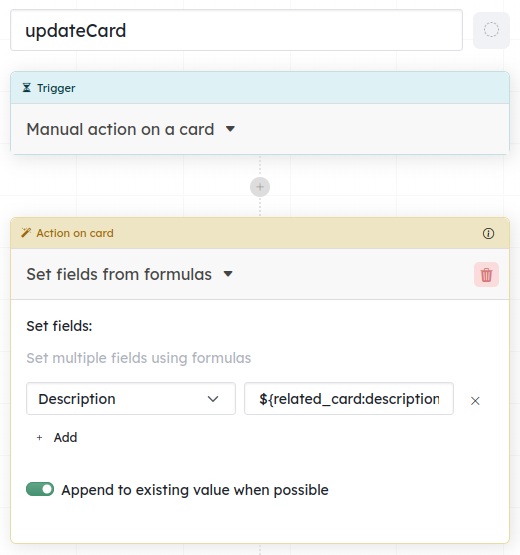
- Create a Manual action on a card rule named “updateCard”. It fills the fields of the level 2 card with the fields of the level 1 card.
- Add a Set fields from formulas action. For each field to copy, choose the field and enter its formula. The
related_cardvariable holds the level 1 card: for example${related_card:description}for its description.
- Add a Set fields from formulas action. For each field to copy, choose the field and enter its formula. The
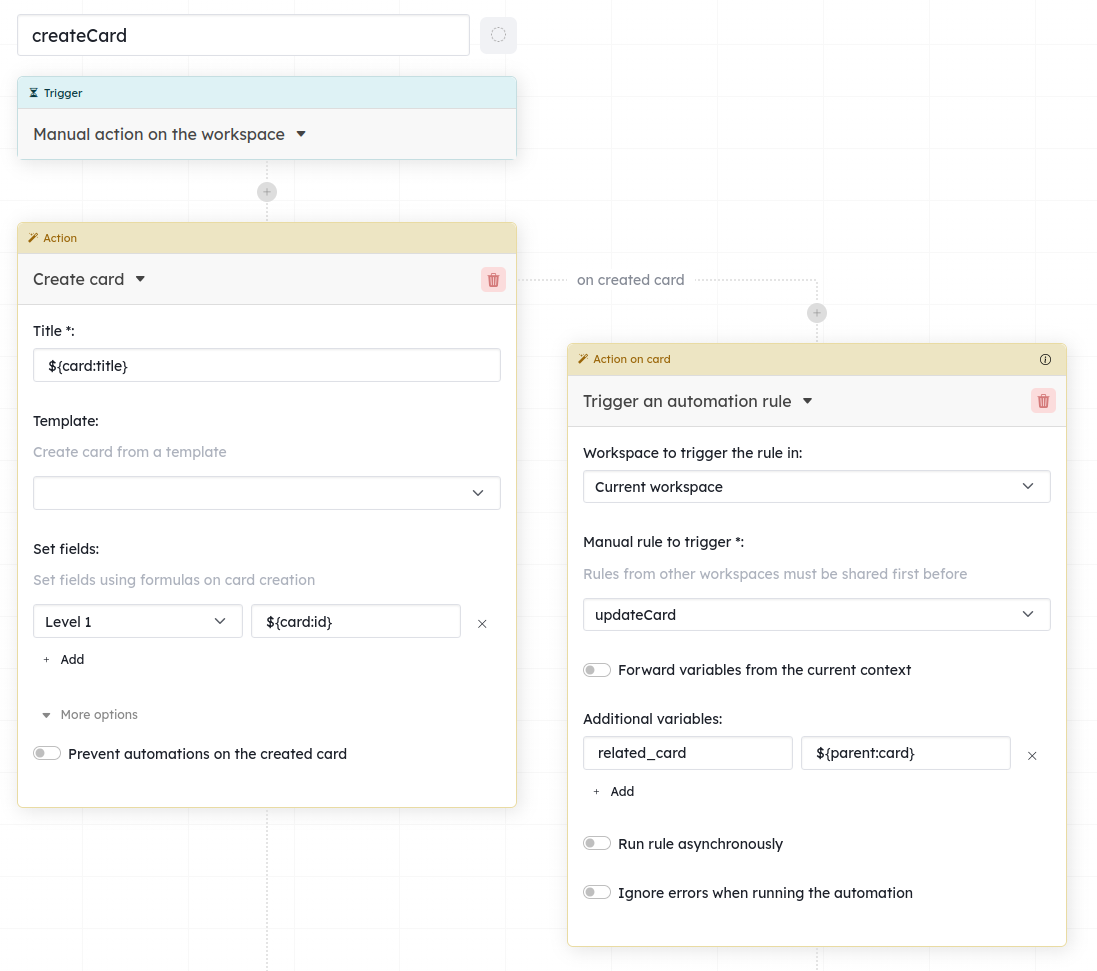
- Create a Manual action on workspace rule named “createCard”. It creates the card, links it to the level 1 card, and starts “updateCard”.
- Add a Create card action: title
${card:title}, and in Set fields, the “Level 1” relationship field with${card:id}. - On the created card, add a Trigger an automation rule action: the rule “updateCard” of the current workspace, with an additional variable
related_card=${parent:card}. - In the list of automations, open the … menu of “createCard”, then turn on Can be triggered from other workspaces.
- Add a Create card action: title
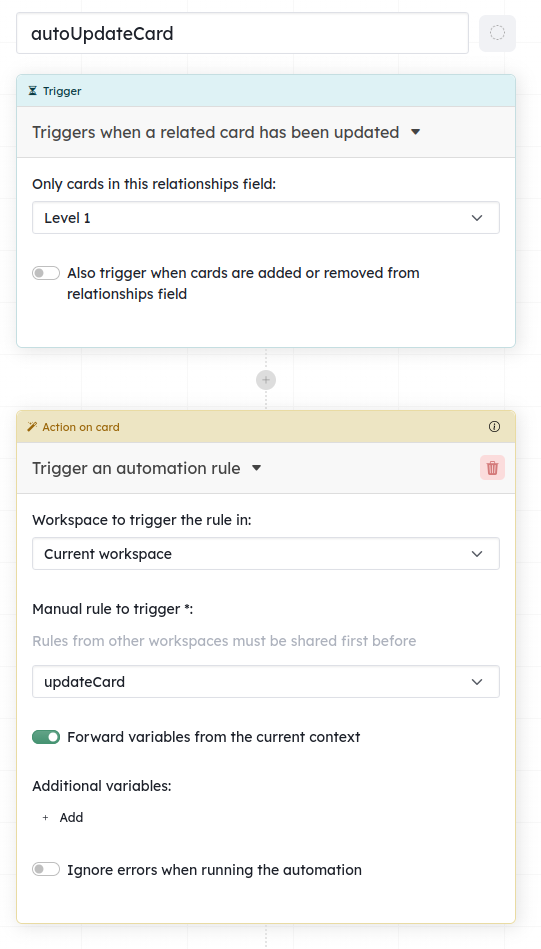
- Create a When something happens rule named “autoUpdateCard”. It starts when the level 1 card changes.
- Trigger: a related card has been updated, with Only cards in this relationships field = “Level 1”.
- Add a Trigger an automation rule action: the rule “updateCard”, with Forward variables from the current context turned on.
In the “Level 1” workspace
Create a Manual action on a card rule named “Send to level 2”, with a Trigger an automation rule action: the workspace “Level 2”, the rule “createCard”, and Forward variables from the current context turned on.
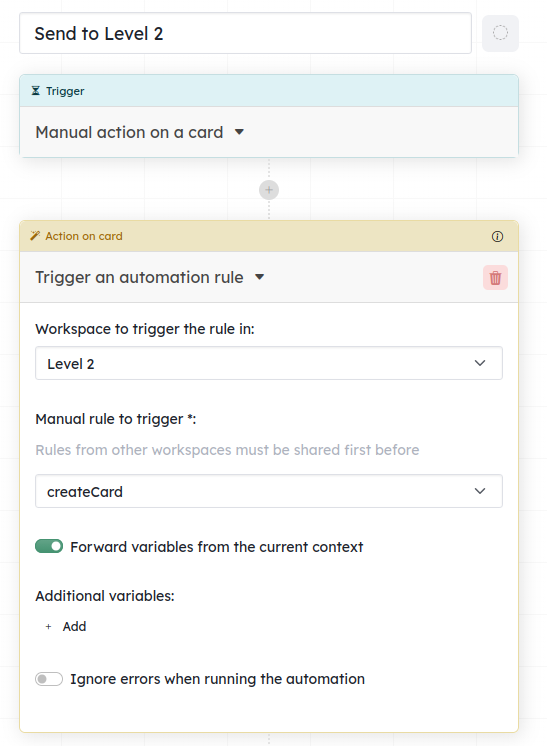
Add the rule to the toolbar of the cards (Add to card toolbar in the list of automations): the level 1 team sends a card to level 2 with one click. See Buttons.