
Project management in Kantree
Discover how the flexibility of Kantree lets you manage your projects with several methods side by side
In this article
- 1 Organize a project in Kantree
- 2 Plan
- 2.1 Represent tasks
- 2.2 Planning: the tools
- 2.3 Views: one workspace for one project
- 2.4 Views: one workspace for several projects
- 2.5 Assignment: the tools
- 2.6 Assignment: see the workload
- 2.7 Assignment: plan the allocation of resources
- 2.8 Resource tracking: configuration
- 2.9 See the progress
- 2.10 Track the gaps between planned and actual
- 3 Indicators
- 4 Close
- 5 Manage your meetings
- 6 Agile Scrum organization
Kantree adapts to how you run your projects: waterfall, agile, or a mix of both. This guide gives you ways to organize the steering of your projects and the work of your teams, with examples.
There are two main ways:
- One workspace: the steering and the tasks are in the same workspace.
- Several workspaces: the steering is in one workspace, the work of each team in other workspaces. Automations make the workspaces communicate.
With several workspaces, each team can choose its own method. For example, the steering team plans with a Gantt chart (waterfall), and the development team works with sprints (agile).
Organize a project in Kantree
One workspace or several?
Answer these questions:
- One project, or several projects? For one project, use one workspace.
- For several projects: do all the projects follow the same workflow (the same steps)? If not, use several workspaces.
- How many people edit the cards? With fewer than 10, one workspace is enough. With more, use several workspaces. People who only read (observers) do not count.
One workspace: the tools
The steering, the planning and the tasks are in the same workspace. To keep it clear:
- Card types separate the kinds of cards, for example “Project”, “Phase” and “Task”. Tasks can be sub-cards of their phase, or be linked to it by a relationship field.
- Views filtered by card type show each kind of card, for example only the “Task” cards.
- Custom roles choose who can change each field, to avoid mistakes.
- The visibility of views shows each role only the views that it needs.
- Lock structure freezes the fields, the card types and the shared views.
One workspace: card types
For example, in the Online Store Relaunch workspace, the phases are cards, and the tasks are sub-cards of the phases. A “Phase” card type gives the phases their own fields (budget, phase manager…), and a “Task” card type gives the tasks theirs (estimate, priority…).
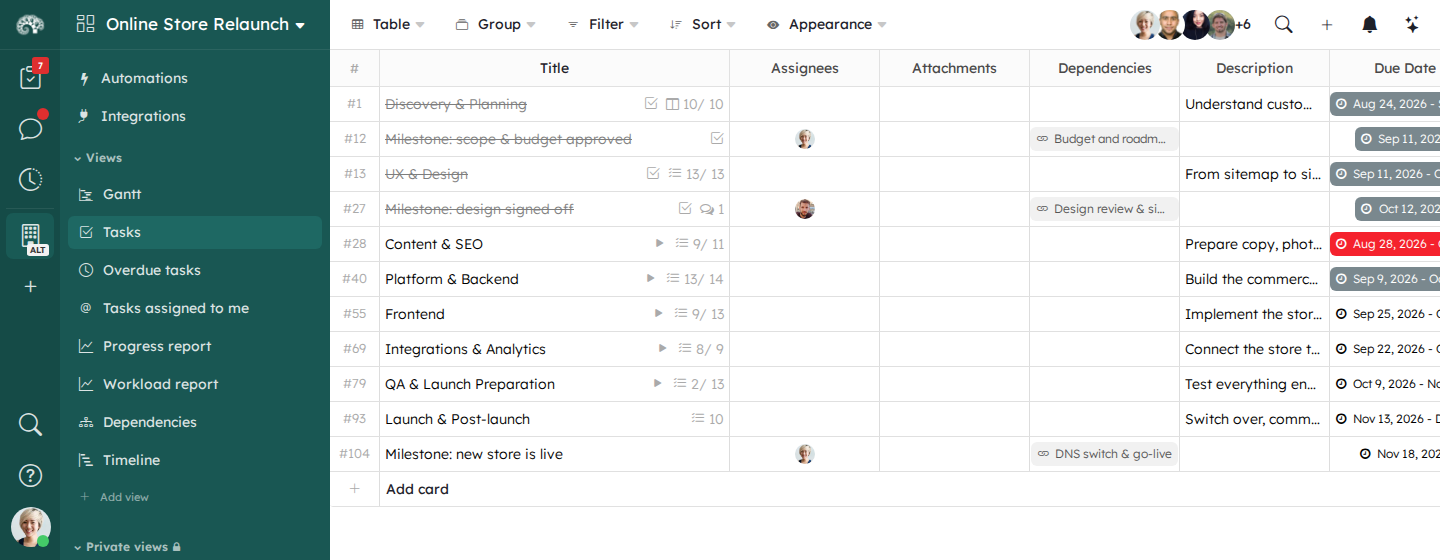
See Card types.
One workspace: permissions
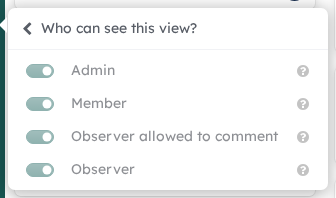
- Create a custom role for each profile, for example “Steering” and “Team member”. See Custom roles.
- Choose which roles can change each field, and which roles see each view.
One workspace: security
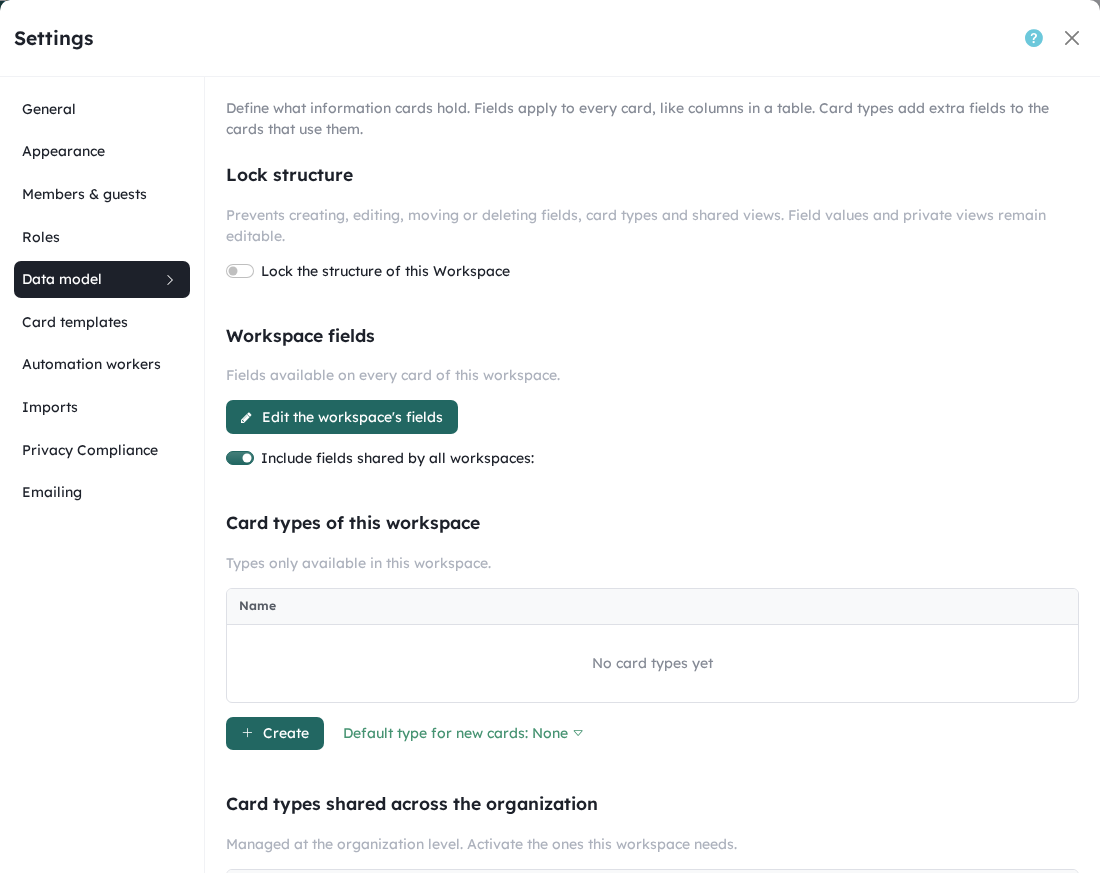
When the structure of the workspace is ready, lock it: open the settings of the workspace, then Data model, then turn on Lock the structure of this Workspace. Nobody can then change the fields, the card types or the shared views.
Several workspaces: methods
Mix methods to get the strengths of each:
- Steering workspace: a predictive method. The projects are cards, planned on a timeline or a Gantt chart.
- Team workspaces: a visual method. The tasks are on a kanban board shared by the team.
An automation creates a card in the team workspace from the steering workspace. A relationship field links the two cards: values are synchronized, and everyone follows the progress from their own workspace.
Use the same names for fields and values in all the workspaces. You can then compare the data, synchronize it with automations, and show it in dashboards of several workspaces.
Several workspaces: the tools
Keep the data consistent:
- card types and fields shared by the organization,
- workspace templates.
Make the workspaces communicate:
- relationship and lookup fields,
- automations that create cards in another workspace,
- automations that synchronize values between the steering cards and the team cards.
Several workspaces: consistent data
Organization administrators can share card types and fields with all the workspaces of the organization. Each workspace then turns on the shared types that it needs, in the Data model of its settings. See Organization fields.
Several workspaces: make them communicate
You can organize the work on several levels:
- Steering: one workspace for all the projects that follow the same organization.
- Business steering: one workspace for each project, or one workspace for several projects of a business unit.
- Execution: one workspace for the tasks of a project, or for the tasks of all the projects.
You choose where each workflow starts and ends. For example: a steering workspace from the draft to the plan, then an execution workspace with all the teams for the delivery.
Watch our video: How to run a project between two teams.
From the steering workspace, automations can:
- create a card in the team workspace, linked to the steering card,
- create sub-cards, for example a checklist,
- send a form: create a card with a link to a form, which then creates a card in the steering workspace,
- assign the card automatically,
- add up the values of sub-cards or related cards on a parent card,
- create meeting cards at a set frequency.
From the team workspace, automations can:
- copy some fields of the card to the steering card,
- check the steps before a request,
- alert when something is wrong: send an email, post a comment, move the card to a group, assign a person.
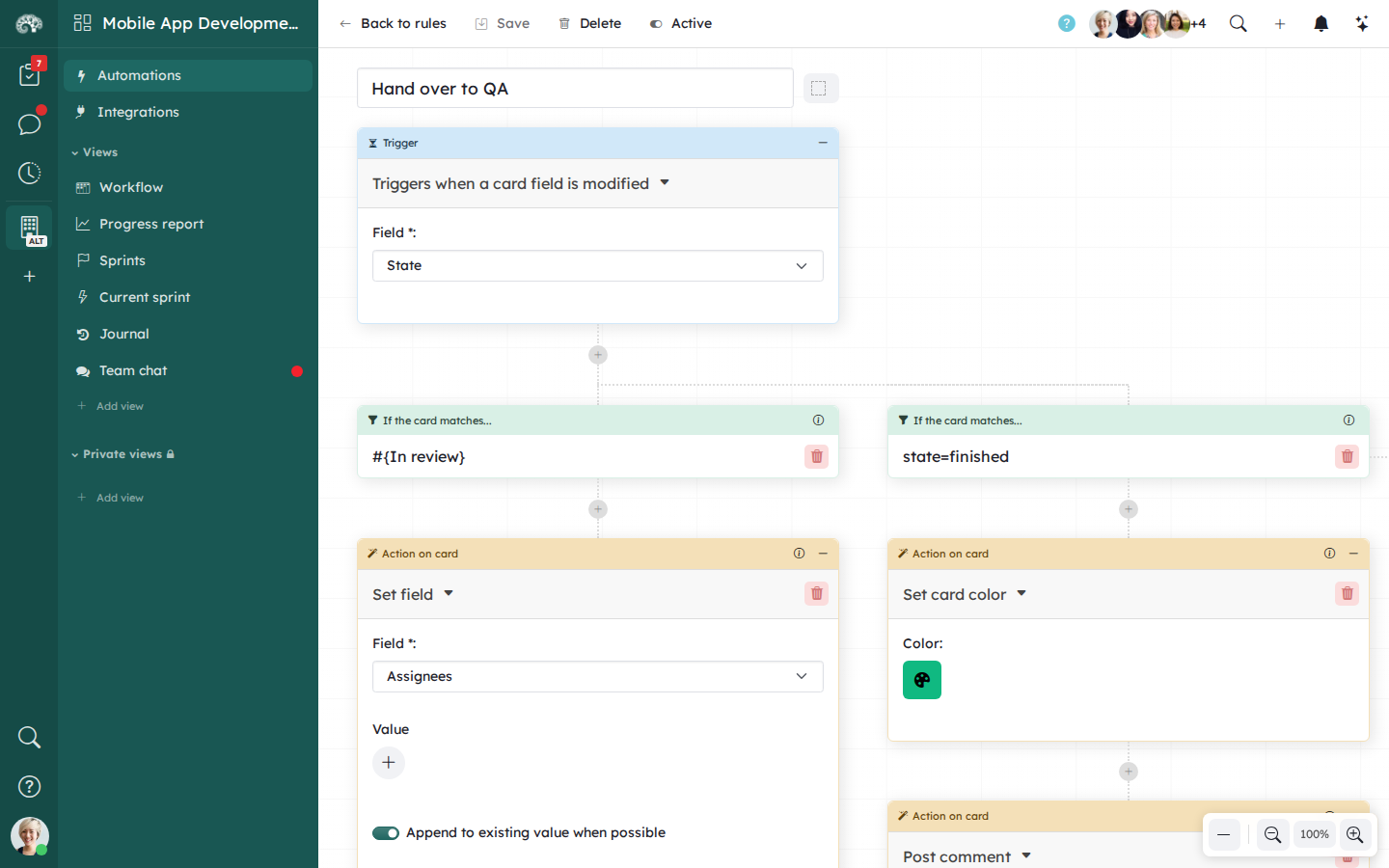
See Automations between workspaces and Synchronize workspaces.
Plan
Represent tasks
A task can be:
- a card linked to another card with a relationship field,
- a sub-card, or a sub-card of a sub-card (with no limit of levels).
| Feature | Linked card (relationship field) | Sub-card |
|---|---|---|
| Link to a card of another workspace | Yes | Yes |
| Two-way link | Yes (option) | No |
| Checklist in the card | No | Yes |
| Created by an automation | Yes (Create card with a formula) | Yes (Create child card) |
| Starts an automation | Yes (query) | Yes (query) |
| Reorder by drag and drop | No | Yes |
| Filter and group | Yes | Yes |
Planning: the tools
- Date fields for the planned dates (start and end) and the actual dates.
- Formula fields to compute dates, for example
as_date({Check date} + period("3 days")), or week numbers withweek_number({Due Date}). See KQL. - A relationship field for the dependencies of the Gantt view.
Views: one workspace for one project
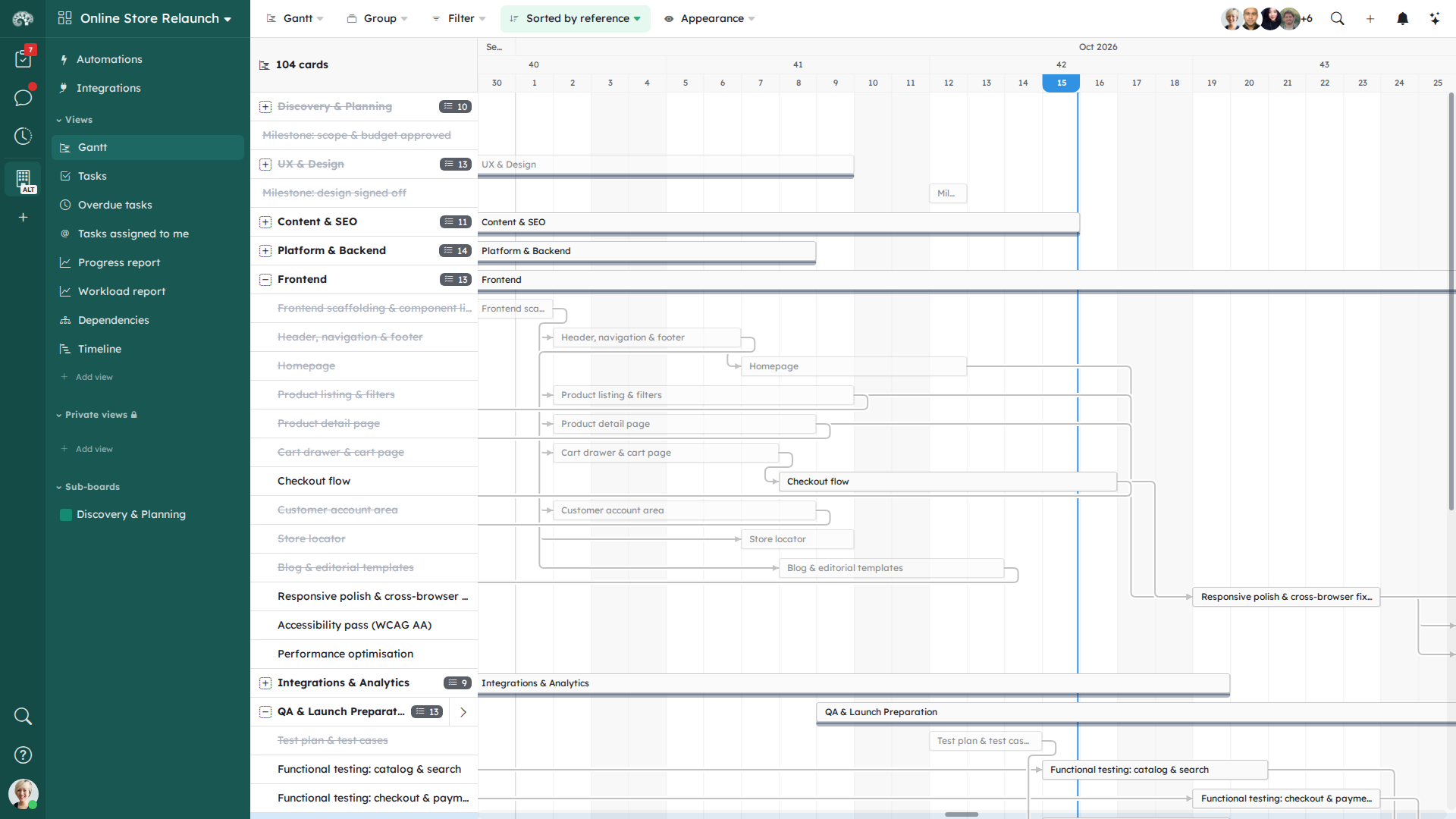
Plan the tasks with a Gantt view: dependencies, critical path, milestones. See Timelines.
Views: one workspace for several projects
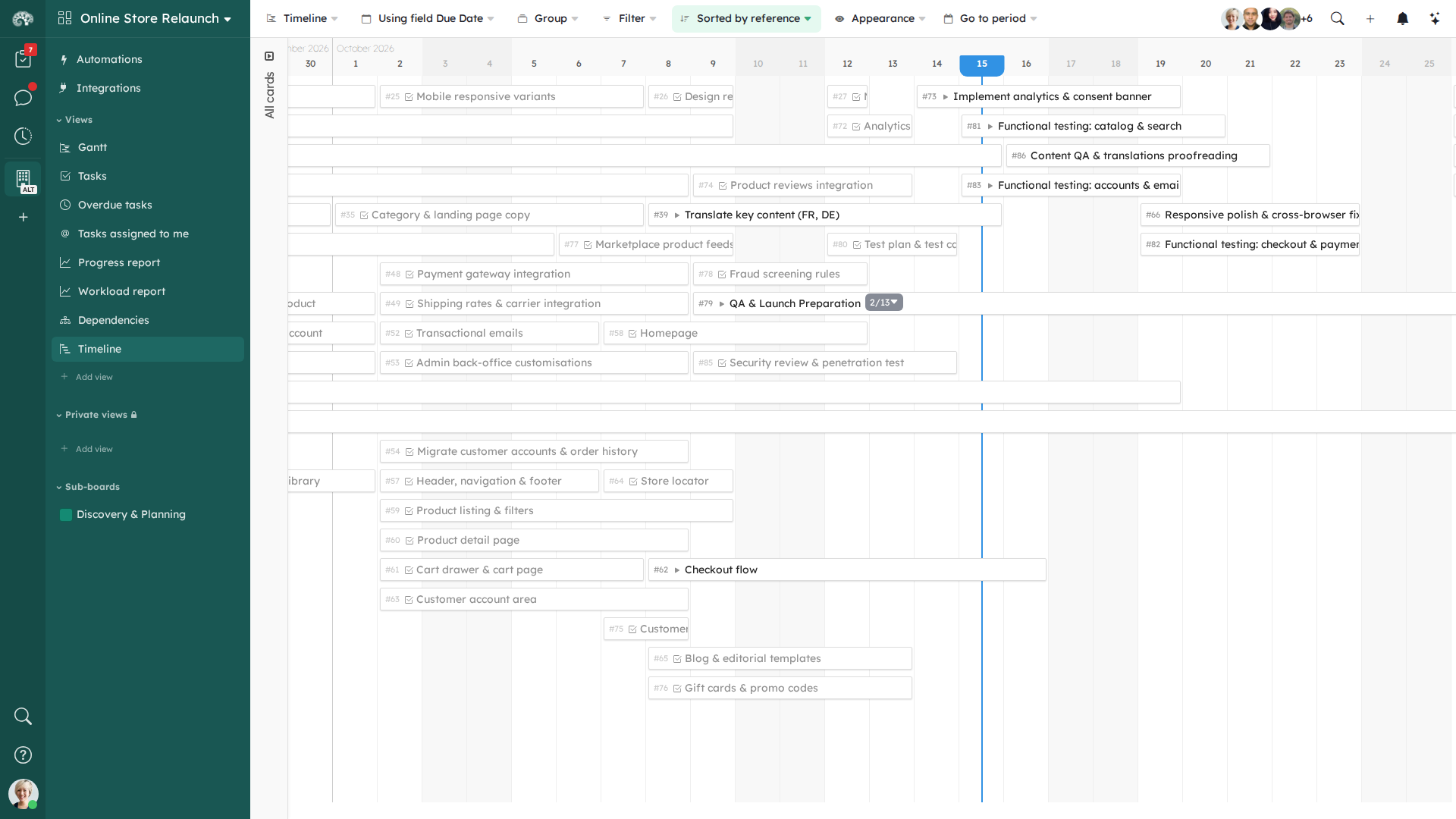
Each project is a card. Follow them with:
- a Kanban view grouped by state,
- a Timeline view, grouped by project manager or by priority,
- a Gantt view,
- a Calendar view.
Assignment: the tools
- Assignees fields notify the people automatically. For example, a “Project manager” field and a “Phase manager” field.
- Members fields only record names, without notifications. You can still notify people with an automation, when you choose.
Assignment: see the workload
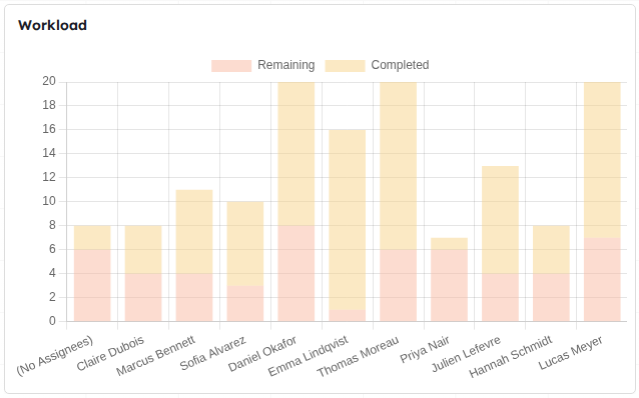
The Workload chart of a dashboard shows the cards of each person. See Dashboards.
Assignment: plan the allocation of resources
In the steering workspace, create a card for each person (resource). Then, for each allocation of this person to a project, create either:
- a sub-card of a card type “Allocation”,
- or a card linked to the person’s card with a relationship field “Allocations”.
Give each allocation a Number field “Allocation (days)”, or a Percentage field.
An automation then adds up the allocations on the person’s card (see below).
Resource tracking: configuration
Example: show on each person’s card the total of their allocations, and whether they are available.
- On the person’s card, add a Number field “Total allocation (days)” and an Automation Trigger Button “Update”.
- Create a Manual action on a card rule:
- Define a variable
allocationwith the value0. - Add a Query block Loop on relationships of a card, on the “Allocations” field. In this block, Define a variable
allocationwith the formulaas_number(${allocation}) + {Allocation (days)}. - After the block, Set field from formula: field “Total allocation (days)”, formula
${allocation}.
- Define a variable
- Add a Formula field “Availability”:
if({Total allocation (days)} >= 30, "Unavailable", "Available")
See the progress
The team fills in the progress of its cards (for example a Percentage field). An automation copies it to the steering card, through the relationship field: the steering team sees the progress of each project without opening the team workspace.
Track the gaps between planned and actual
Example of a configuration:
- two date fields: “Planned date” and “Actual date”,
- a Gantt view on the planned dates, and another on the actual dates,
- a table view with the gaps, computed by formula fields.
Gap in days:
count_days({Planned date}, {Actual date})
Type of gap:
if({Planned date} != empty, if({Planned date} < {Actual date}, "Late", "Ahead"), "Unknown")
Indicators
- The dashboard of a workspace shows the indicators of this workspace.
- My work has personal dashboards, with data from several workspaces.
- A portfolio has dashboards to share indicators of several workspaces with other people. See Portfolios.
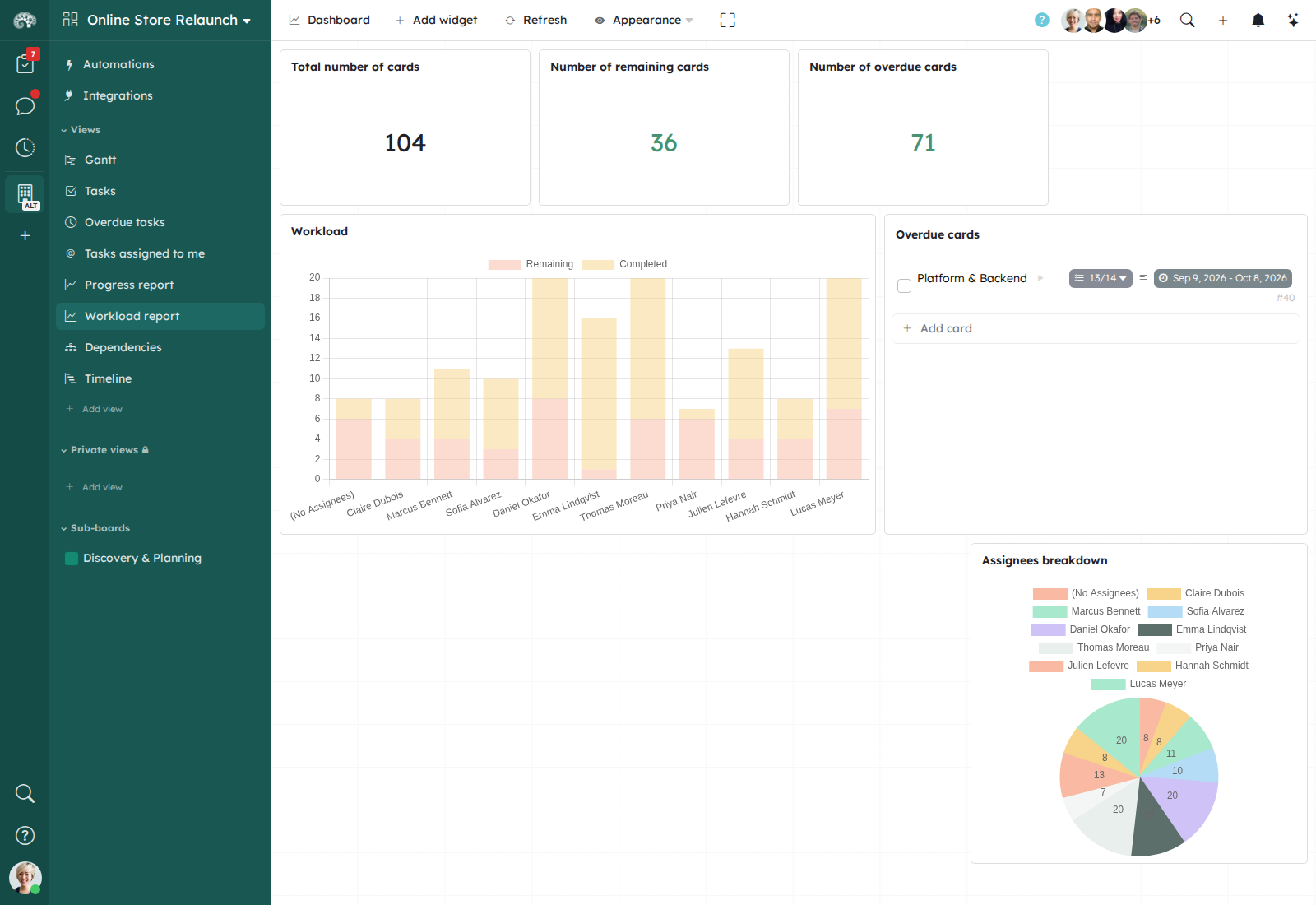
See Dashboards.
Close
Manage lessons learned
Collect your lessons learned in the project workspace:
- Create a card type “Lessons learned”.
- Add the fields of your lessons learned: what went well, what went wrong, what to change…
- Fill them on the card, or create a form that the members fill before the review meeting.
- Link the collected cards to the lessons learned card, to have everything in one card during the review.
- Add a labels field to tell when the lesson was learned: during the project or at the end.
Manage your meetings
Create a card type “Meeting”, with fields for:
- the preparation of the meeting,
- the notes during the meeting,
- the minutes (an automation can send them by email for approval),
- the actions to take after the meeting: create them as sub-cards, or as cards in another workspace.
A Scheduled action can create the meeting cards at a set frequency, for example every Monday.
Agile Scrum organization
With Kantree, you can:
- manage your sprints, stories, epics and tasks your way,
- link them, to see each piece of information in its context,
- see the work of the current sprint, of the next sprints, and the backlog,
- let the team members assign themselves the work.
The examples below use the Mobile App Development workspace of the demo.
Set up your data model
One workspace
One workspace holds the sprints, the stories, the epics and the tasks. It can also collect the requests of the users (bugs, feature requests) and the retrospectives. Everyone works in the same place, with the context of their work.
Sprints
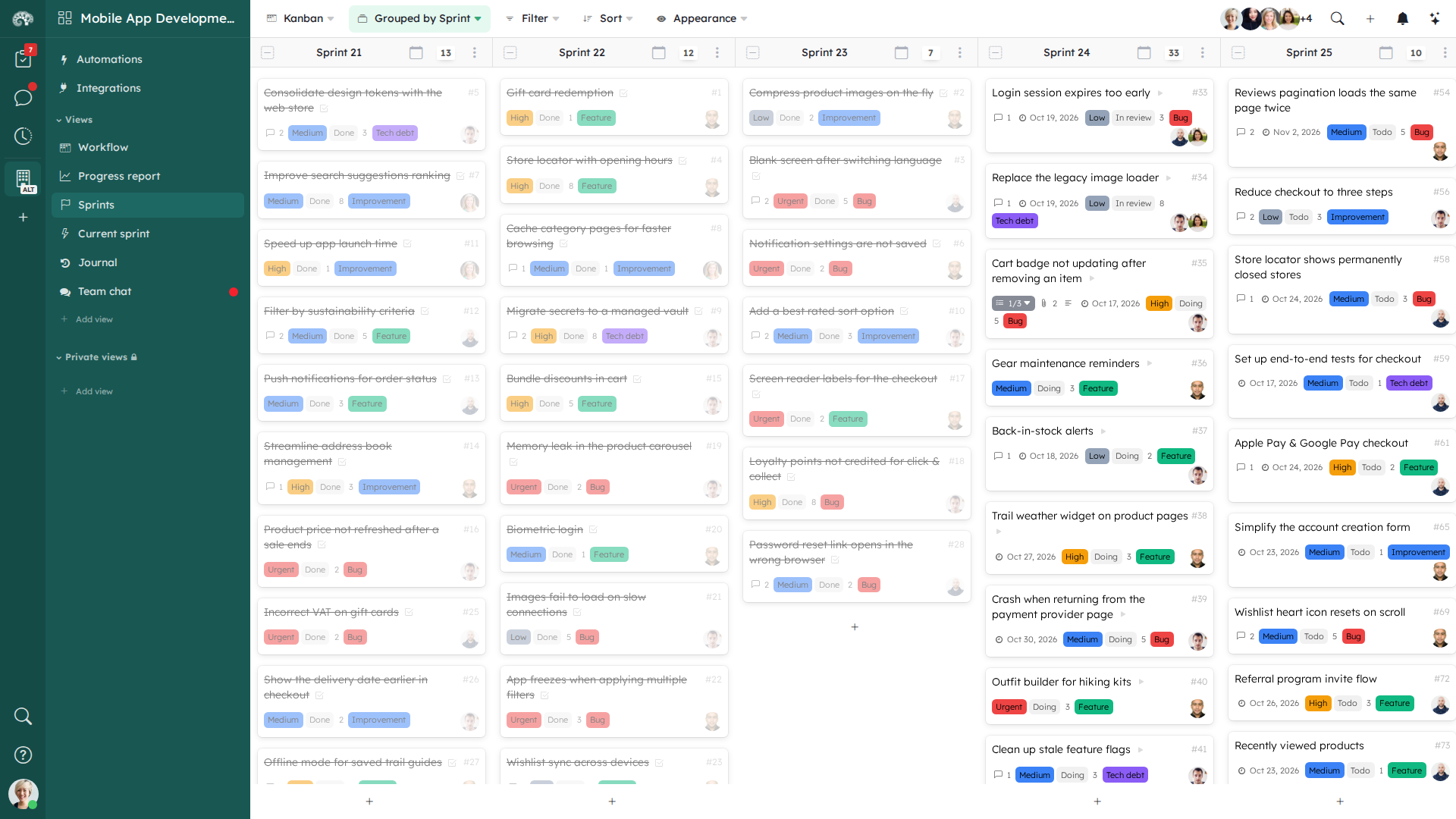
Use a Milestone field “Sprint”: each sprint is a value of the field, with a start date and an end date. In the options of the field, choose a duration (for example two weeks): each new sprint starts when the previous one ends.
A board grouped by Sprint shows the plan of the next sprints:
Card types
Use card types for the different kinds of cards: epic, story, task, bug, feature request, retrospective. Tasks can be sub-cards of their story. Give each type its own fields.
Fields
- an Assignees field to assign people,
- a State field for the steps of the work,
- a Number field for the story points,
- a Relationships field to link a story to its epic. Turn on Keep both relationship fields synchronized to see the link from both cards.
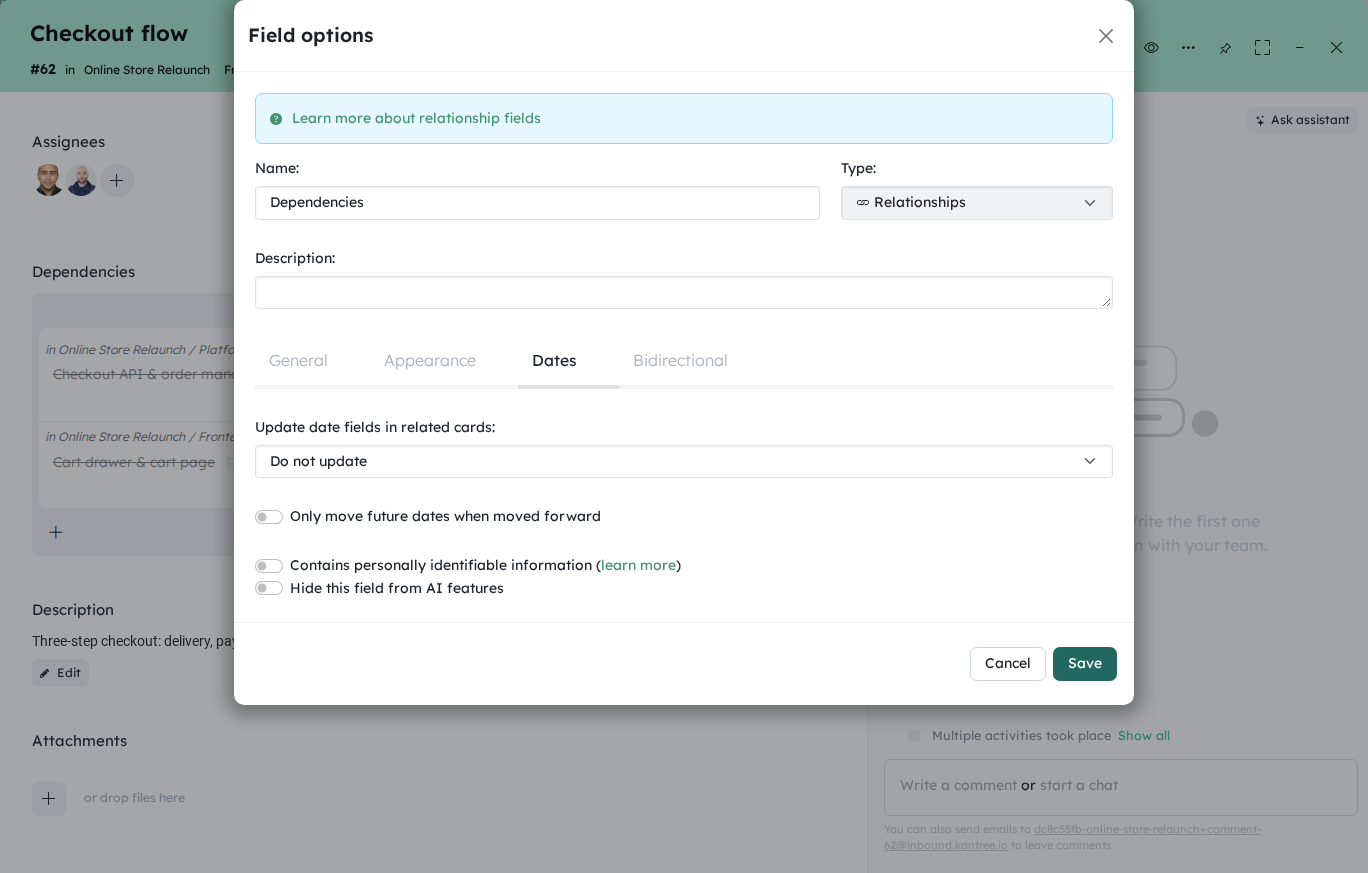
When the data model is stable, lock it in the settings of the workspace (Data model, then Lock the structure of this Workspace).
Change the data model
To change the structure, unlock the workspace, make your changes, then lock it again.
Create cards
- By hand: the members create cards in the views. To let only some people create cards, use custom roles. See Collaborate with your team.
- With a form: collect the requests of the users. Each answer creates a card with its fields filled, and you can talk with the person in the comments of the card. See Forms.
- By email: each workspace has an email address. Unlike forms, emails do not fill the fields. See Create cards by email.
Focus on the data that matters
Shared views
Give the team the views it needs: for example the board of the current sprint, filtered with is_in_active_group?().
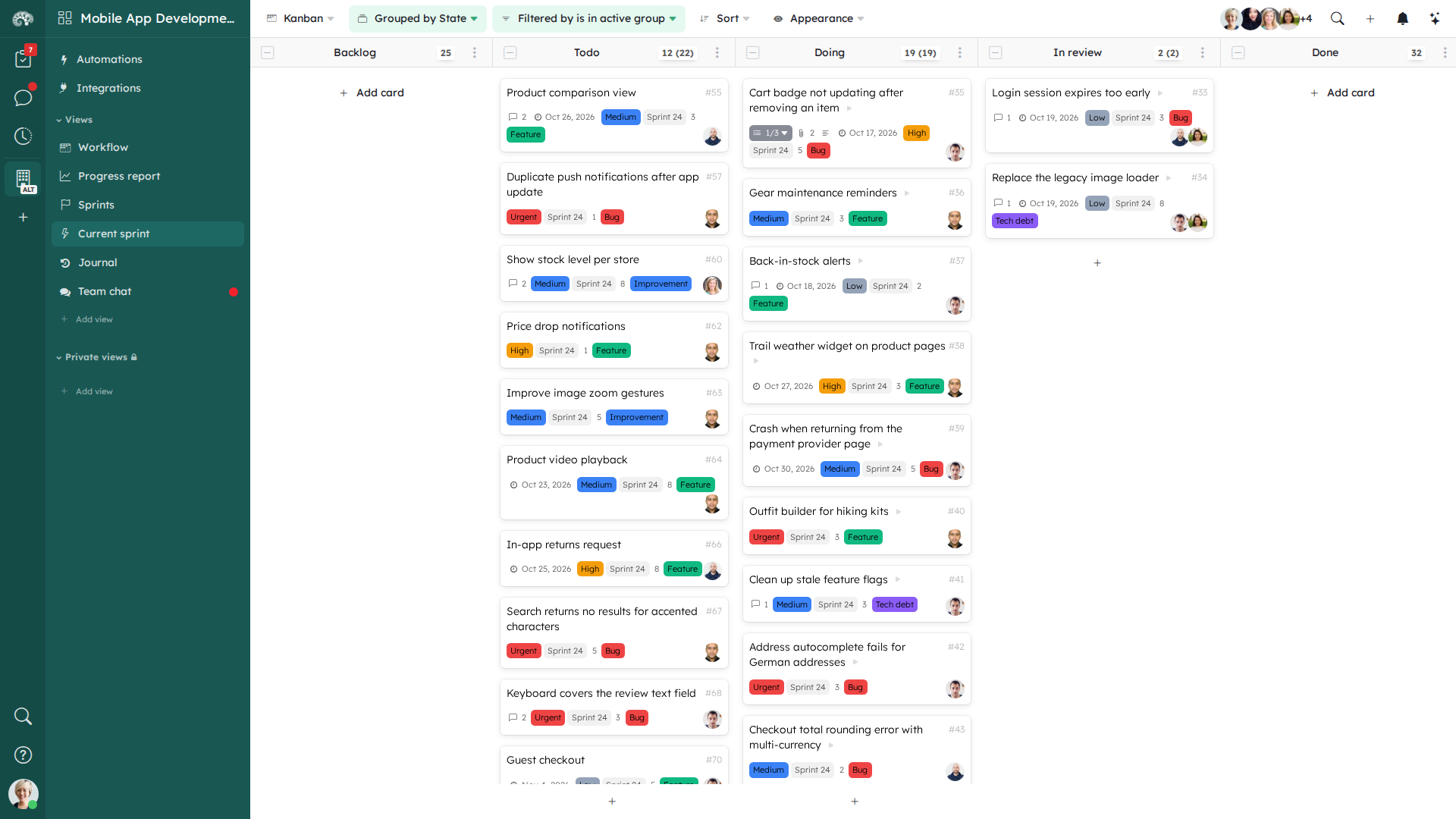
Each member can also create private views from a shared view, with their own options. For example, the shared view is a kanban, but a member prefers a table.
Filter
Show only the cards that matter, for example the stories that are not started, or the cards of an epic. See KQL.
Grouping
The kanban, table, list, timeline and Gantt views group the cards by a field: state, labels, sprint, assignees, relationships… The kanban view can also group by two fields: for example the sprints in columns and the assignees in rows.
Organize the views
When you have many views, or several teams in the same workspace, sort the views in categories.
Who sees which view
Show each role only the views that it needs. For example, give a person outside your team the Observer allowed to comment role, and show them only the progress views: you talk with them in the comments instead of by email. See Views.
Roles and permissions
The built-in roles are Admin, Member, Observer allowed to comment and Observer. You can also create custom roles.
Suggested roles:
- Scrum Master: Admin
- Product Owner, developers, testers: Member
- People outside the team who send requests: a custom role that can only change some fields and comment.
Create your Scrum indicators
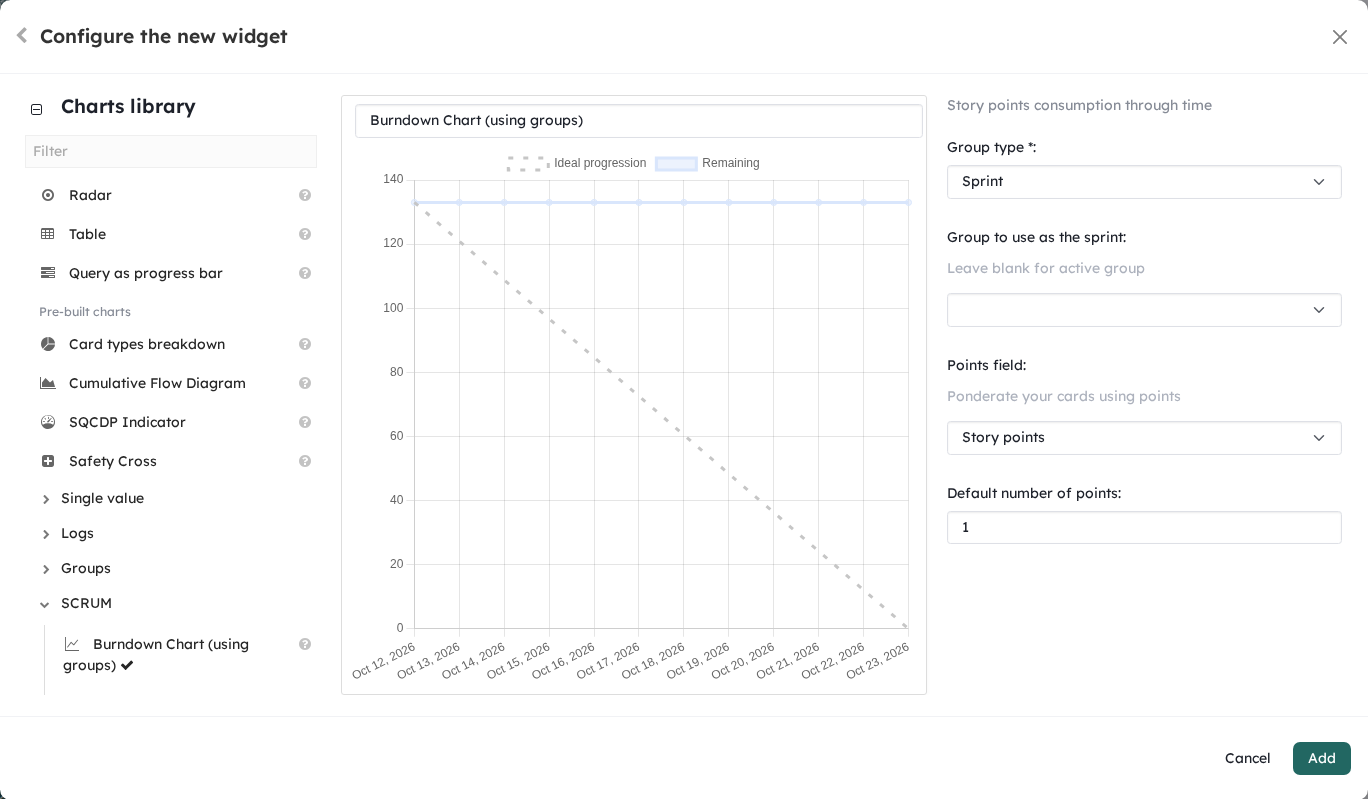
Dashboards show charts, numbers and lists of cards in one place. Some charts are made for Scrum:
- Burndown Chart (using groups): the remaining points of the current sprint, with the Sprint field as Group type and the story points as Points field. Burndown Chart (via relationships) works when the sprints are cards.
- Velocity Per Group: the points completed in each sprint.
- Workload: the work of each member.
Automate your processes
Examples:
- notify the team when a sprint ends,
- create the retrospective card automatically,
- send an email to the person who reported a bug, to confirm that it is fixed.